Tutorials
- Get Started on Flipboard
-
Welcome to Flipboard, your personal magazine. Here are tips on how to get started. You can watch our quick video tutorial, or read more below.
- 1. Download Flipboard
- Available for free in the App Store, Google Play, Windows Store, Blackberry World, Amazon App Store and Nook App Store.
- 2. Pick a Few Topics
-
When you launch Flipboard for the first time, swipe past the “Welcome to Flipboard” screen. On phones, swipe up. On tablets, swipe left. Only small gestures are needed to flip pages on Flipboard.
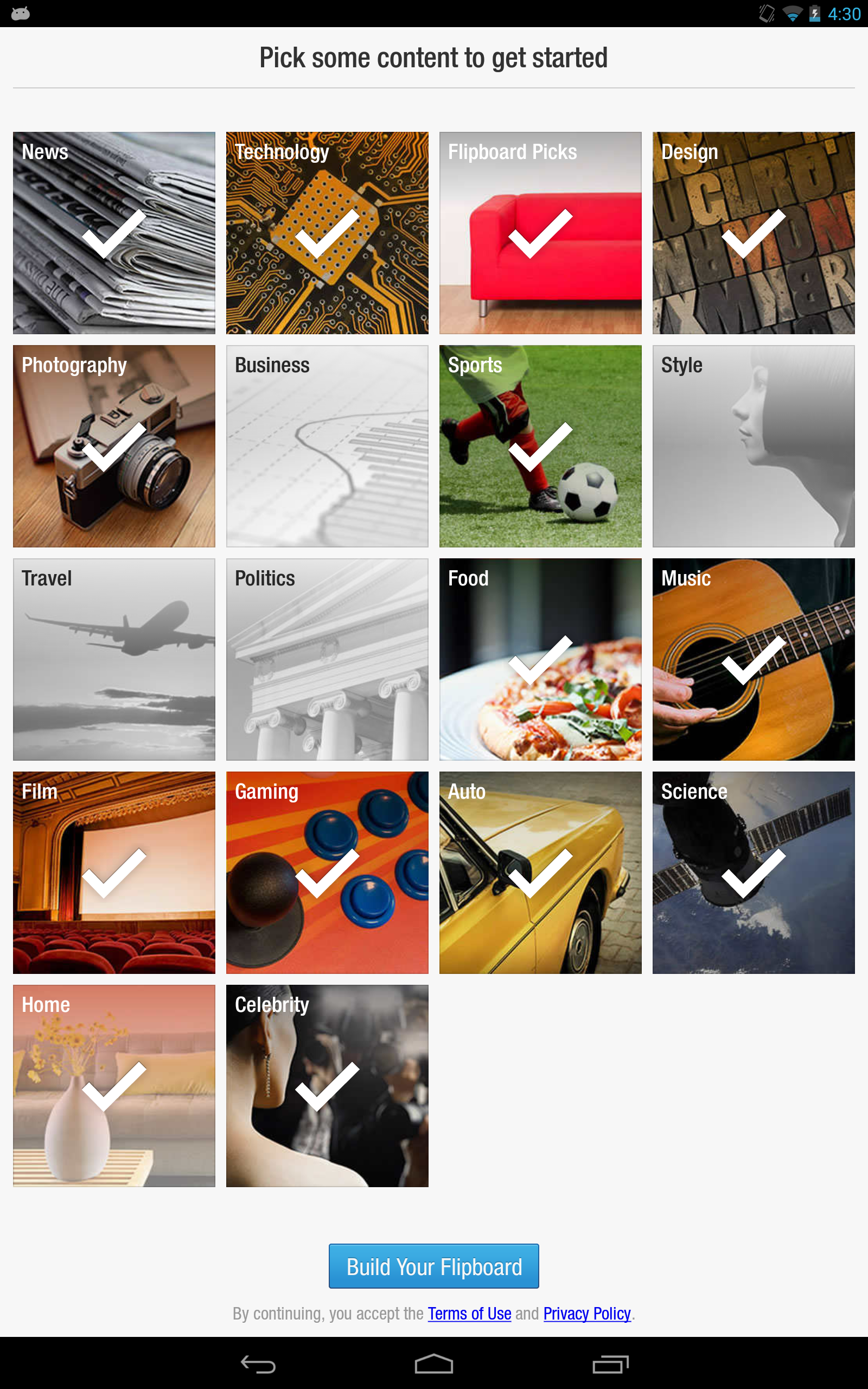
On the next page, tap to start following different topics from Tech and News to Style and Film. Tap on Facebook and Twitter to login and receive updates from your social networks on Flipboard. When you’re done, tap “Build Your Flipboard” at the bottom.
- 3. Welcome to Your Flipboard
-
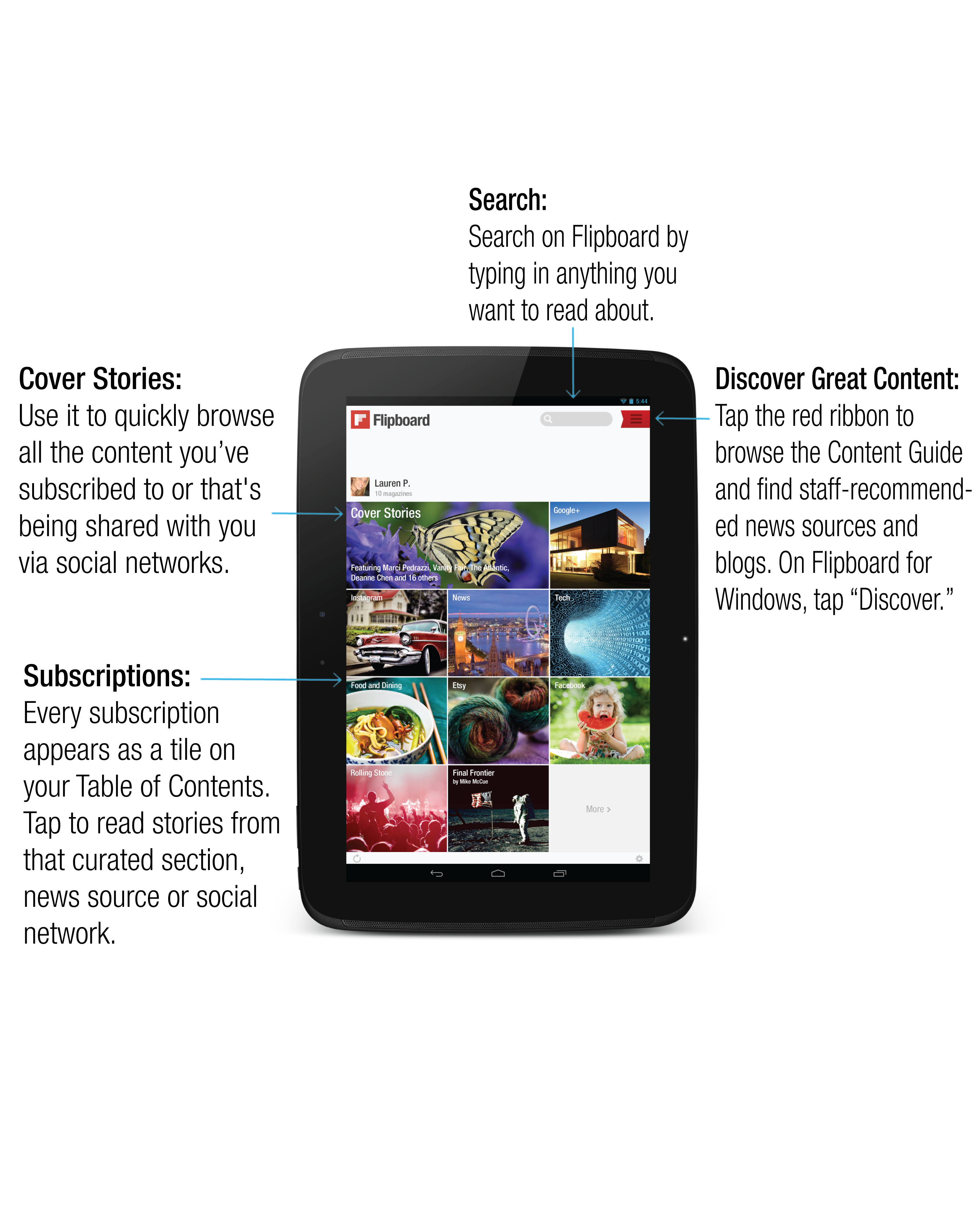
After setting up your Flipboard, you will arrive at the Table of Contents—the “front page” that houses all your favorite content. The Table of Contents has four features: The things you follow, Cover Stories, the Content Guide and search.
- 4. Discover What You Like
-
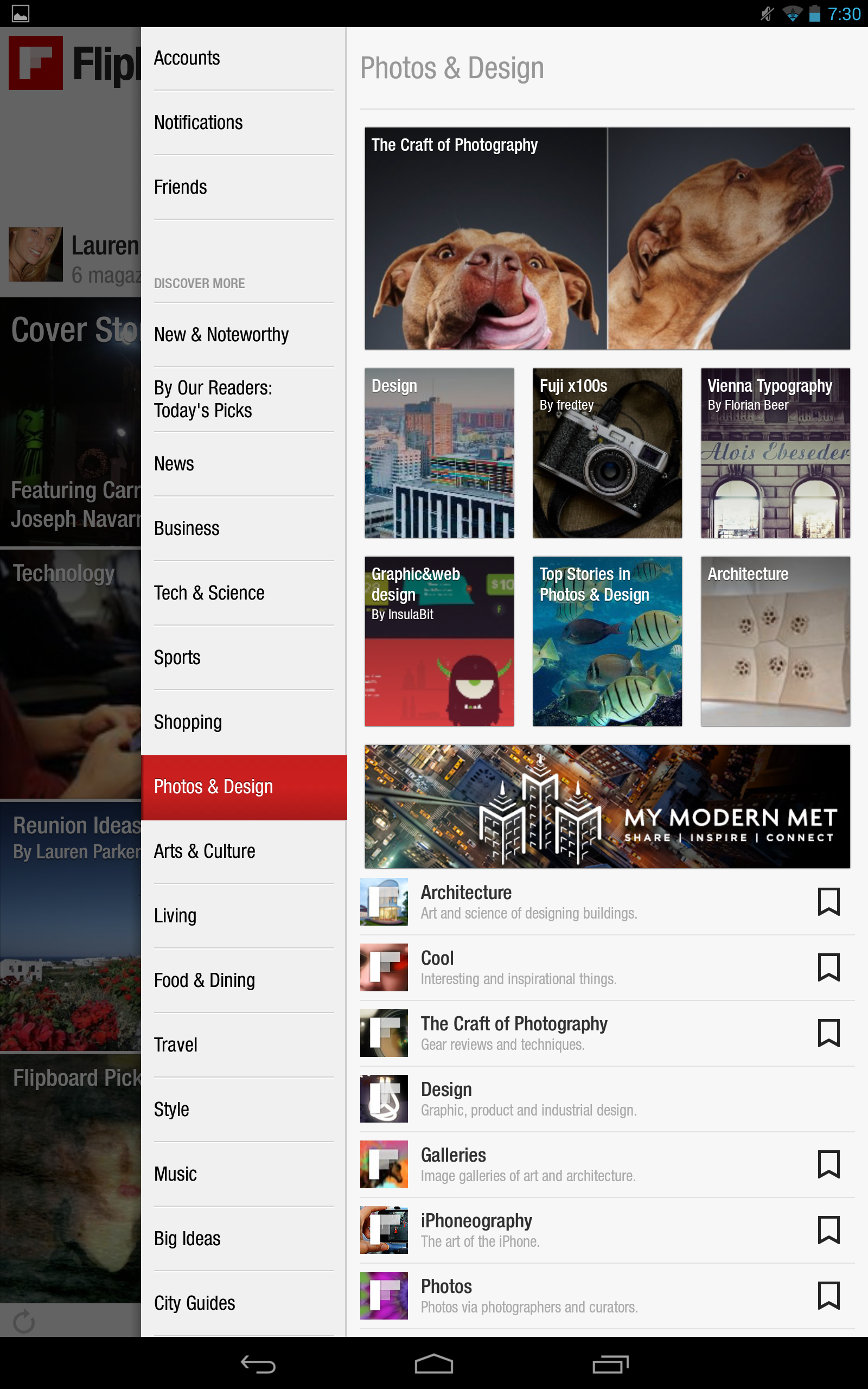
Explore the Content Guide for hundreds of recommendations for what to read, look at, or listen to. Find individual publishers, such as the BBC in the News category, National Geographic in Travel and My Modern Met in Photos & Design. There's also curated sections on topics like cycling, technology, business, culture and music.
Follow what you love to customize your Flipboard. As you browse the Content Guide, tap the Follow icon (looks like a bookmark) next to the title, or follow as you flip through a magazine. Following in item creates easy-to-access tiles on your Flipboard, and adds content to your Cover Stories.
- 5. Connect Your Social Networks to Flipboard
-
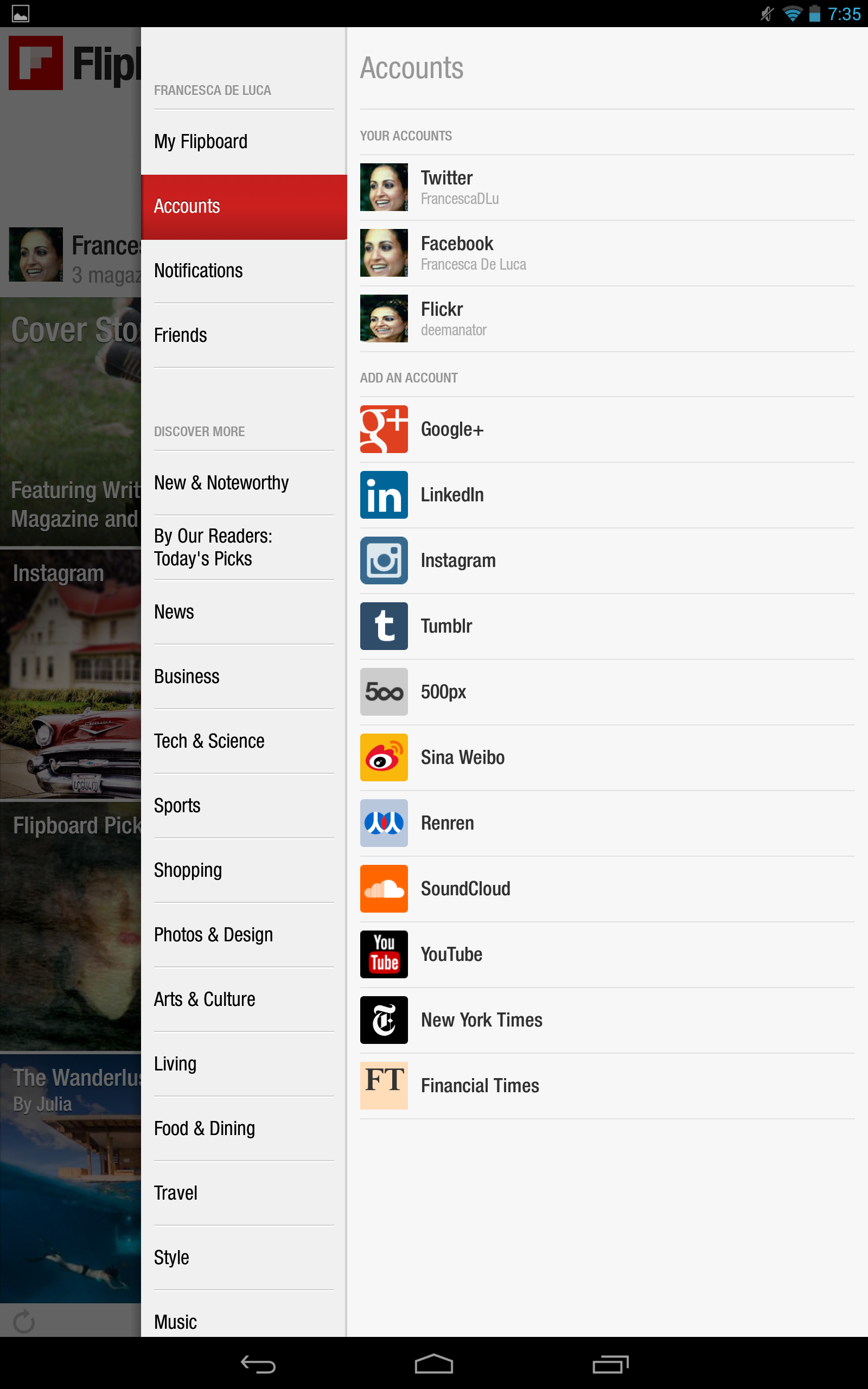
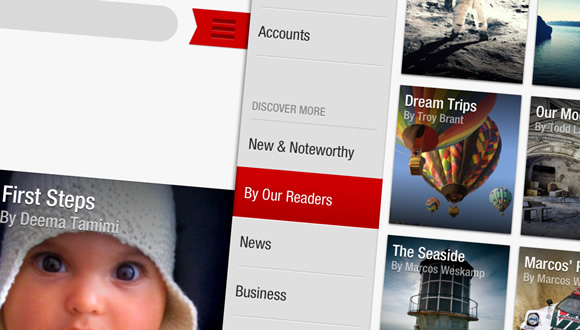
Add your social networks to quickly browse newsfeeds from that network. You can also share articles you enjoy with your friends, family and followers. Tap the red ribbon (or “Discover” on Windows), go to Accounts, select a network and Sign In to social networks. Now you can read your social networks on Flipboard and share great content with the people closest to you.
- 6. Share From Flipboard
-
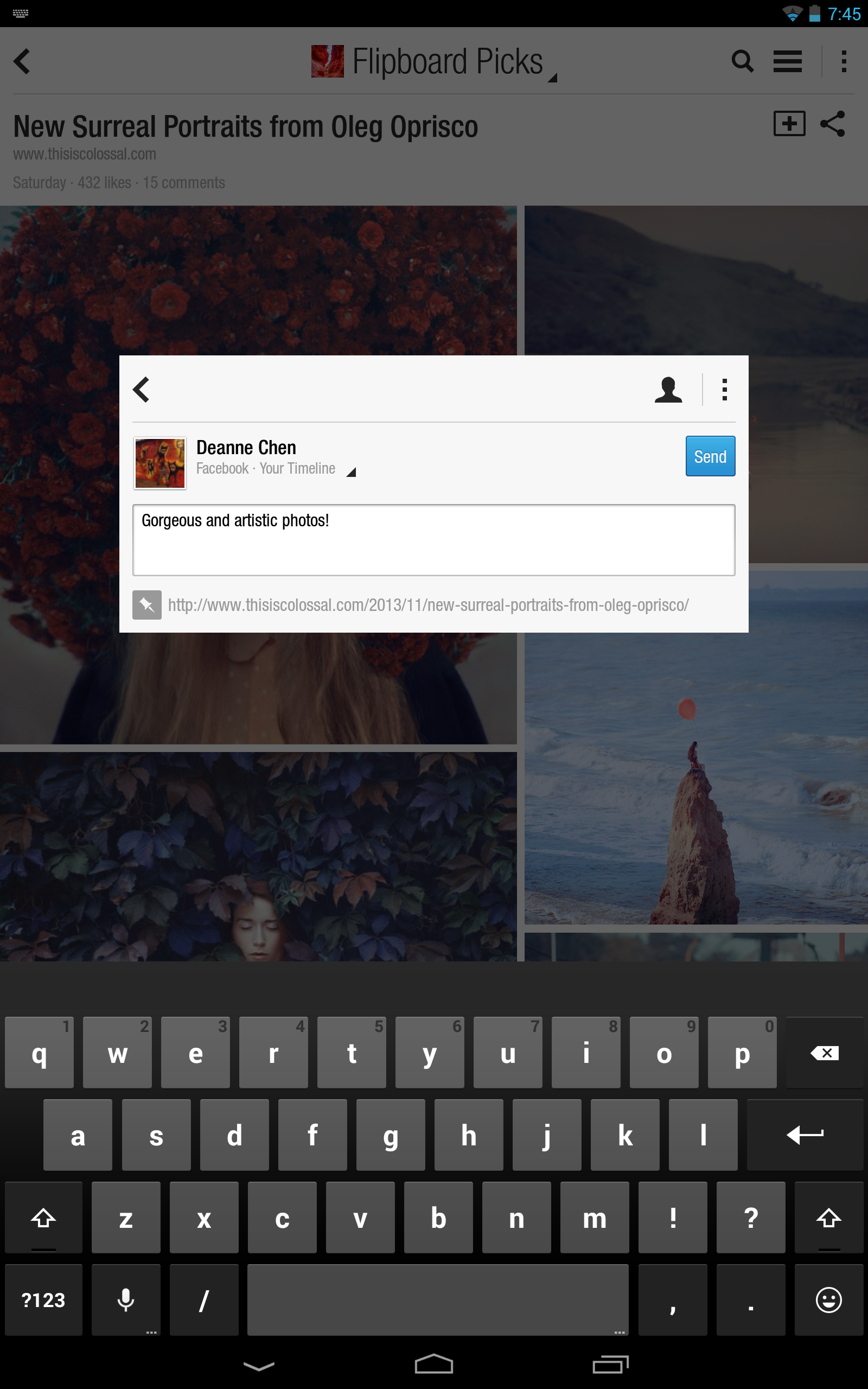
It’s easy to share the amazing content you come across on Flipboard. Tap and hold down on the item for options to send via email, SMS or your social networks. You can also view the article on the Web.
- Creating Your Own Magazines
-
Learn the basics for creating your own magazines on Flipboard. You can begin by watching the video tutorial below, or see our tips for magazine creation below.
- 1. Find Great Content
-
There are three simple ways to find great content for your magazines.
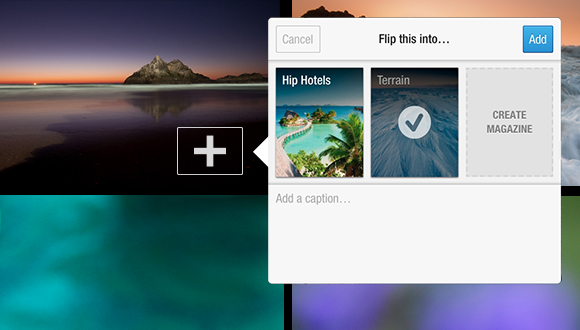
Tap the [+]: As you flip through stories, images and videos on Flipboard, you’ll see a small [+] button on every item. Tap the [+] to save any item into a magazine.
Use Flipboard Search: Type any topic into Search and you can find great content to flip into your magazines.
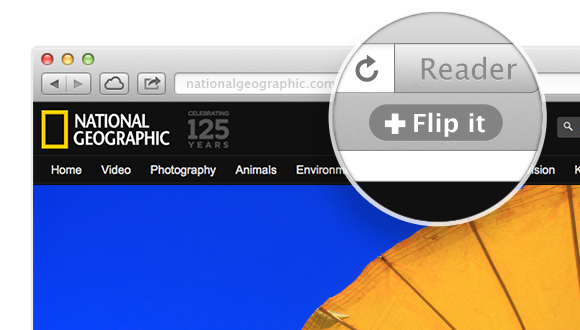
Save Things from the Web: Flip articles, images, audio tracks, videos and products from the Web into your own magazines with the "Flip It" browser bookmarklet.
- 2. Add a Title and Set Your Privacy Options
-
Be sure to add a description and select a category for your magazine. This will help other readers discover your magazines through search. You can also make a magazine private until you are ready to publish it.
- 3. Set an Amazing Cover and Profile Picture
-
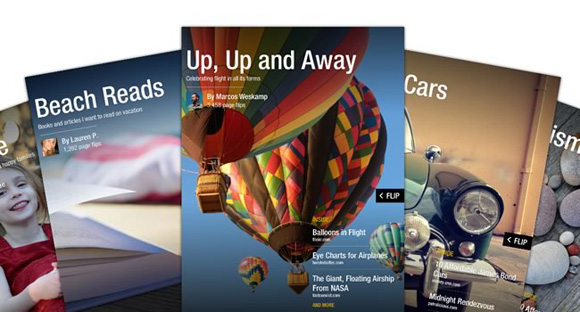
You can also select a cover for your magazine. Just tap and hold any piece of content in your magazine and select “promote to cover.” Upload a profile picture from settings to ensure it shows on your cover and profile.
- 4. Share Your Magazine with Friends and Followers
-
Tap the Share button on your magazine’s cover. From there, you'll be able to email or post it to your social networks with a personalized message.
You can also see all your magazines on the web as a profile. Simply go to flipboard.com/profile/[YourFlipboardUsernameHere].

- 5. Create a Magazine Together
-
Invite friends that share your interests to contribute and co-curate magazines with you.
- 6. Do It All From the Web
-
The Flipboard Editor allows you to manage your magazines from a convenient dashboard. Rearrange and delete items, set covers and share your magazines with friends — all from editor.flipboard.com.
- 7. Get Inspired
-
Once you've started creating magazines, you can always find them in the Content Guide by tapping the red ribbon. You'll also find great magazines here from the Flipboard community in the "By Our Readers" section. Have fun flipping through them and getting inspiration for your own creations.
If you’d like more visibility for your magazine, read our Tips for Building an Audience on Flipboard guide.
- Learn More and Sign Up for the MagMaker Newsletter
- Download this full guide as a PDF at flip.it/magazines101. To get updates and tips on creating magazines or optimizing your own content for Flipboard sign up for the Flipboard MagMaker's Newsletter.
- Video Tutorials
-
Learn About Flipboard Magazines on the Web
Some Magazine Making Basics to Help You Get Started
Magazine Making How-Tos for Android
Magazine Making How-Tos for Windows
Discover Great Content for Your Magazines
Share Your Magazines, Find Your Friends' Magazines and Make Magazines Together
Make, Edit and Share Your Magazines From the Web
Shopping on Flipboard and Making Your Own Catalogs
Need help? [email protected]